Every Business Central tenant has a database storage quota. Once your environments together use more than that quota, Microsoft does not shut anything down, but it does restrict what administrators can do until the tenant is back under the limit.
This post covers how the quota is calculated, what actually happens once you go over it, how to check your current usage in the admin center, and what to do about it.
How the Quota Is Calculated
By default, every Business Central tenant gets 80 GB of database storage. On top of that, you get extra storage for each license assigned in your tenant:
| License type | Extra storage per license |
|---|---|
| Premium | 3 GB |
| Essential | 2 GB |
| Device | 1 GB |
| Partner Sandbox | 5 GB |
This capacity is shared across the entire tenant. It does not matter whether the data sits in your production environment or a sandbox, all environments draw from the same pool. If you buy an additional production environment through your CSP partner, that adds 4 GB to the shared pool along with three more sandbox environments.
What Counts Toward Your Usage
The content of every nonsystem table counts toward database usage, including:
- Posted documents, ledger entries, and journal lines
- Files and images attached to records, stored in the Tenant Media and Tenant Media Thumbnails tables
- Data left behind by uninstalled extensions, if you chose not to delete it during uninstall
Attachments are often the biggest surprise here. A company that scans invoices and stores them as PDF attachments on purchase documents can burn through a large share of its quota without anyone noticing, because the growth is gradual.
What Happens When You Exceed the Quota
This is the part that causes the most confusion, so to be direct about it:
Your existing environments keep working. Users can keep posting transactions, running reports, and using Business Central normally. Microsoft does not lock you out of data you already have, and you are not automatically billed for the excess.
What gets blocked is creating or copying environments. Once your tenant is over quota, you cannot:
- Create a new production or sandbox environment
- Copy an existing environment
- Restore an environment from a backup
These operations stay blocked until you either free up enough space to get under the limit or purchase additional capacity. The same restriction applies if you have more environments than your license entitles you to, separate from the storage question.
Checking Your Usage in the Admin Center
- Sign in to the Business Central admin center.
- Select Capacity in the left-hand navigation.
- Review the Storage capacity usage section for the Database bar.
When you are within quota, the bar shows how much of your allowance is used. When you are over, the bar turns red and shows exactly how many GB you are over, as in the example below.
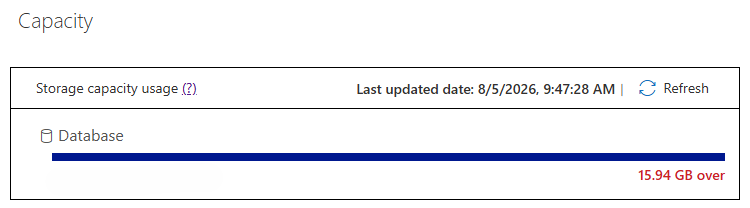
The Capacity page also breaks down usage by environment, and by source (default allowance, license-based allowance, and purchased add-ons). For a closer look at where the space is going inside a specific environment, open the Table Information page in that environment to see size by table.
Reducing Database Usage
Before buying more capacity, it is worth checking whether you actually need it. A few practical options, roughly in order of effort:
- Delete unused companies. Test companies and the Demo Company are common offenders and are safe to remove once you no longer need them.
- Delete old documents. Historical posted documents, like invoiced purchase orders, can be removed once you no longer need them for reference.
- Set up retention policies. Retention policies let Business Central automatically delete outdated log entries and archived records on a schedule, instead of relying on someone to remember to clean them up.
- Move attachments to external storage. If attachments make up a large share of your usage, offloading them to Azure Blob Storage, Azure File Share, or SharePoint removes them from the database entirely going forward.
Table-level data compression is applied automatically for Business Central online, so there is no manual compression step to run yourself.
Buying Additional Capacity
If you genuinely need more space, for example because of long retention requirements or a large volume of scanned documents, additional database capacity is available as an add-on through your reselling partner:
- Database Capacity (1 GB), for smaller top-ups
- Database Capacity (100 GB), for larger increases
- Database Capacity Overage (1 GB), a lower-priced add-on available once you already own at least one 100 GB add-on
- Additional Environment Add-on, for tenants that need more production or sandbox environments rather than more storage
Pricing depends on your licensing agreement, so check with your Cloud Solution Provider partner for current rates.
To move document attachments out of the database and directly reduce your usage, see How to Store Document Attachments in External Storage.